Connect n8n to Kimetai
Nine steps, no code and nothing to install on your side. Click any screenshot to open it full size. At the end, every workflow and every AI agent running in your n8n instance appears in your Discovery inventory — with its platform, its status and whether it has been analysed yet.
Sign in to Kimetai
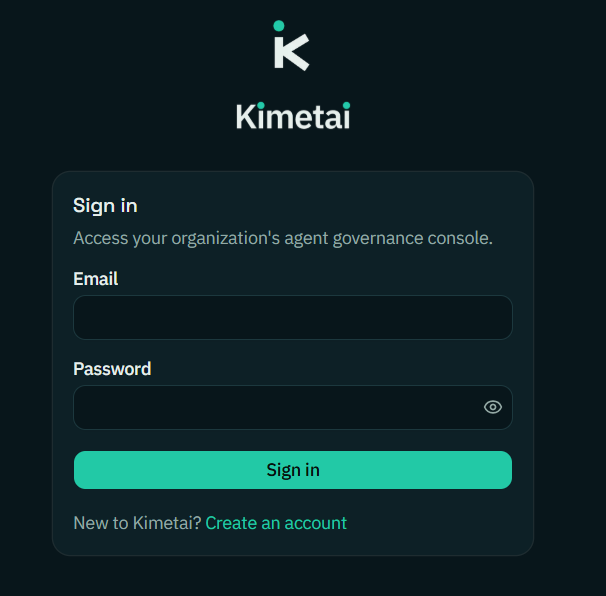
Access the console with your work account. Discovery, the inventory and the integrations all live inside your organisation tenant, so everything you connect from here stays scoped to it.
Open the Integrations section
In the left sidebar, under ADMIN, open Integrations. This is the list of platforms Discovery scans. Once a platform is connected, Discovery keeps the inventory fresh on its own — you do not need to come back here after every change in n8n.
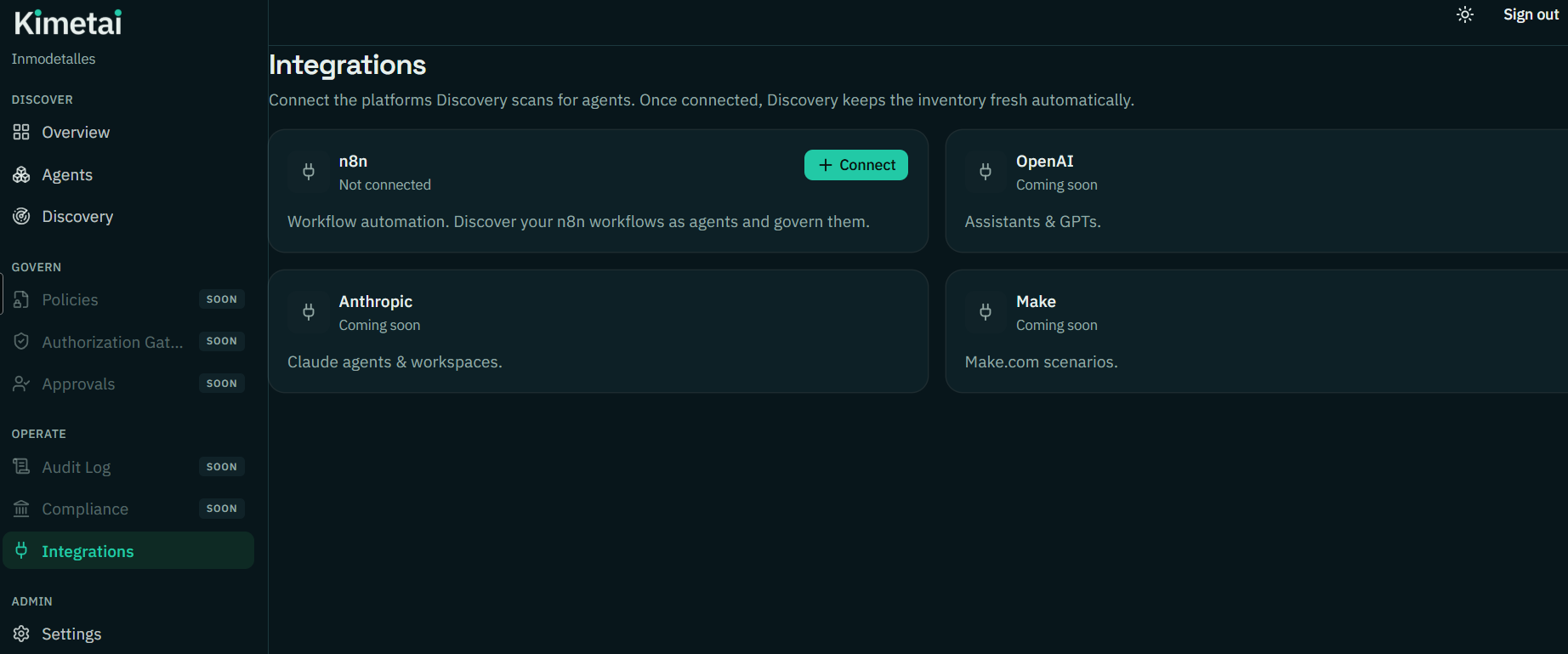
Click Connect on the n8n card
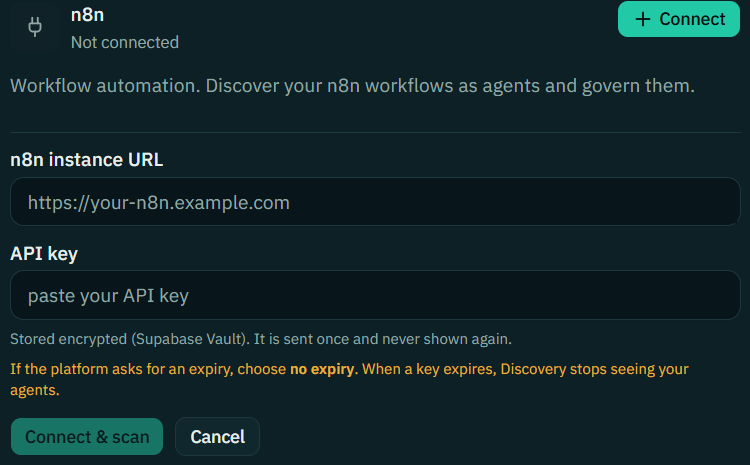
The card expands into two fields: the URL of your n8n instance and an API key. Leave it open — you need to generate that key in n8n first.
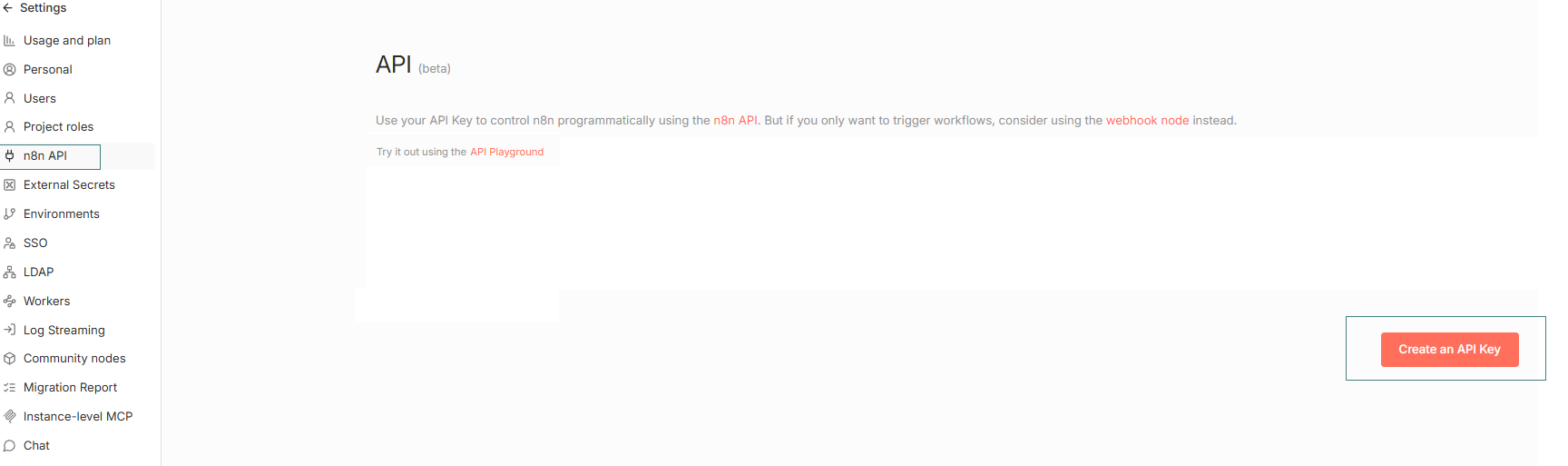
In n8n, open Settings → n8n API
Go to your n8n environment and, in the settings menu, open n8n API. Then click Create an API Key. This is the standard n8n API — Kimetai uses it read-only, to list what exists.
Name the key and set its expiry
Give the key a label you will recognise in six months — API-n8n-tutorial is clearer than test-2. For expiry, choose No Expiration, or write down the renewal date somewhere you will actually look.
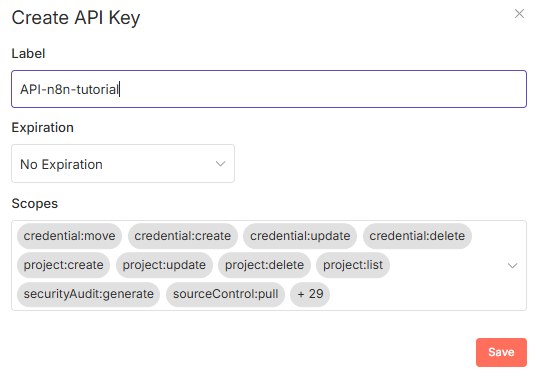
If the key expires and nobody renews it, Discovery stops seeing your workflows and agents. The inventory does not fail loudly — it just goes stale, which is exactly the state this whole exercise is meant to avoid.
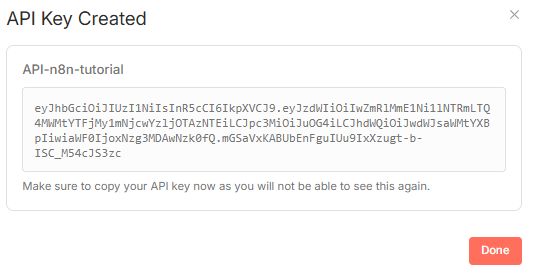
Copy the key — it is shown only once
n8n displays the key a single time. Copy it now and, if it is not going straight into Kimetai, store it in your vault. The key in this example has been deleted and is no longer valid.
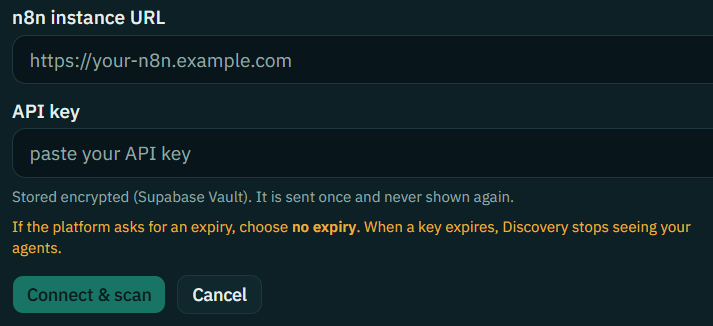
Paste the URL and the key into Kimetai
Back in the integration card, enter the URL of your n8n platform and paste the API key. It is stored encrypted (Supabase Vault), sent once and never shown again. Then click Connect & scan.
Discovery inventories everything running in n8n
The card switches to Connected and reports how many automations it found on the first scan. From that moment, the whole n8n estate lives in Discovery: deterministic workflows and AI agents in the same list, each with its platform, its governance status and whether it already has an AI profile.
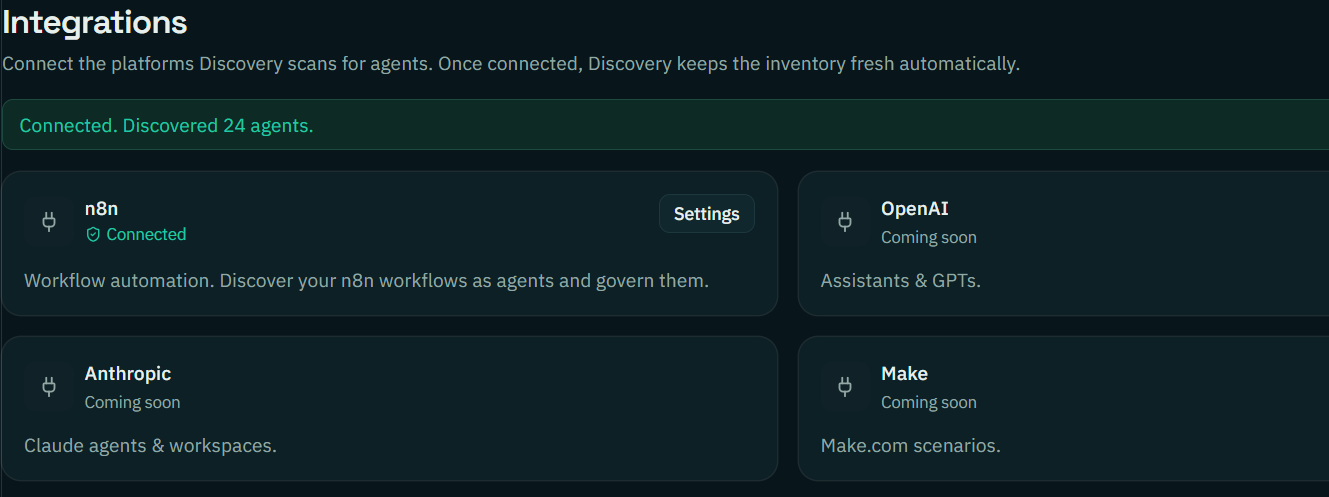
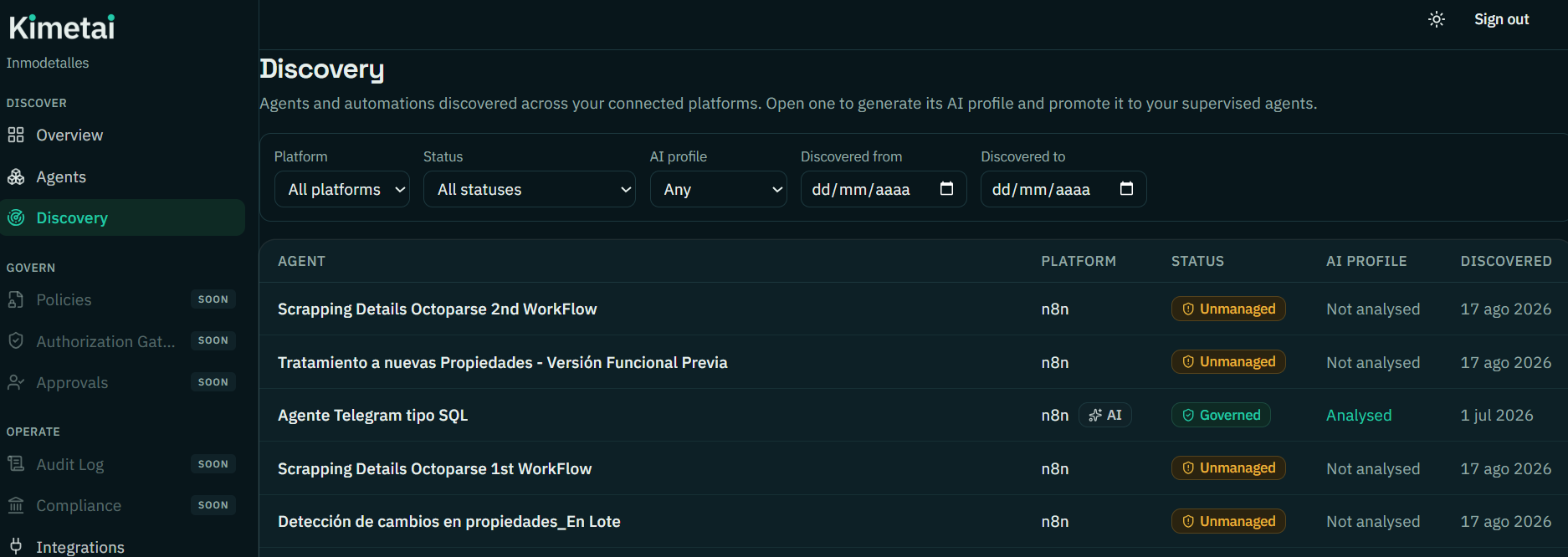
Anything that arrives as Unmanaged is running without supervision: it exists, but nobody has reviewed what it does, which systems it writes into or who answers for it. Open one to generate its AI profile and promote it to your supervised automations — that is where classification and governance begin.
Force a sync whenever you want
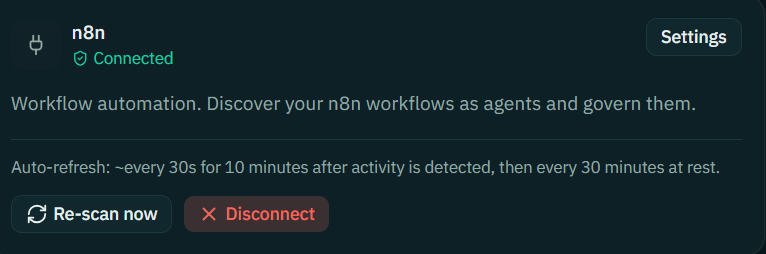
You can return to the settings of any active integration at any time. Kimetai already re-scans on its own — roughly every 30 seconds for ten minutes after it detects activity, and every 30 minutes at rest — so the inventory keeps up with n8n without anyone touching it. Even so, Re-scan now is there for the moments when you want the list refreshed immediately: right after publishing a batch of workflows, or before walking into a review. The same panel lets you disconnect the platform, which stops the scanning without deleting the history already collected.